
How many times? Ask yourself. You’ll undercount.
It’s always right there. A rectangle of light, promise, and anxiety. You don’t need to hear a chime to check it. You just need the impulse. The scroll starts before you’ve even made your morning coffee.
There are ways to fight this. Mute notifications. Buy a brick phone. Walk away from civilization entirely. Risky moves.
Or you change one setting.
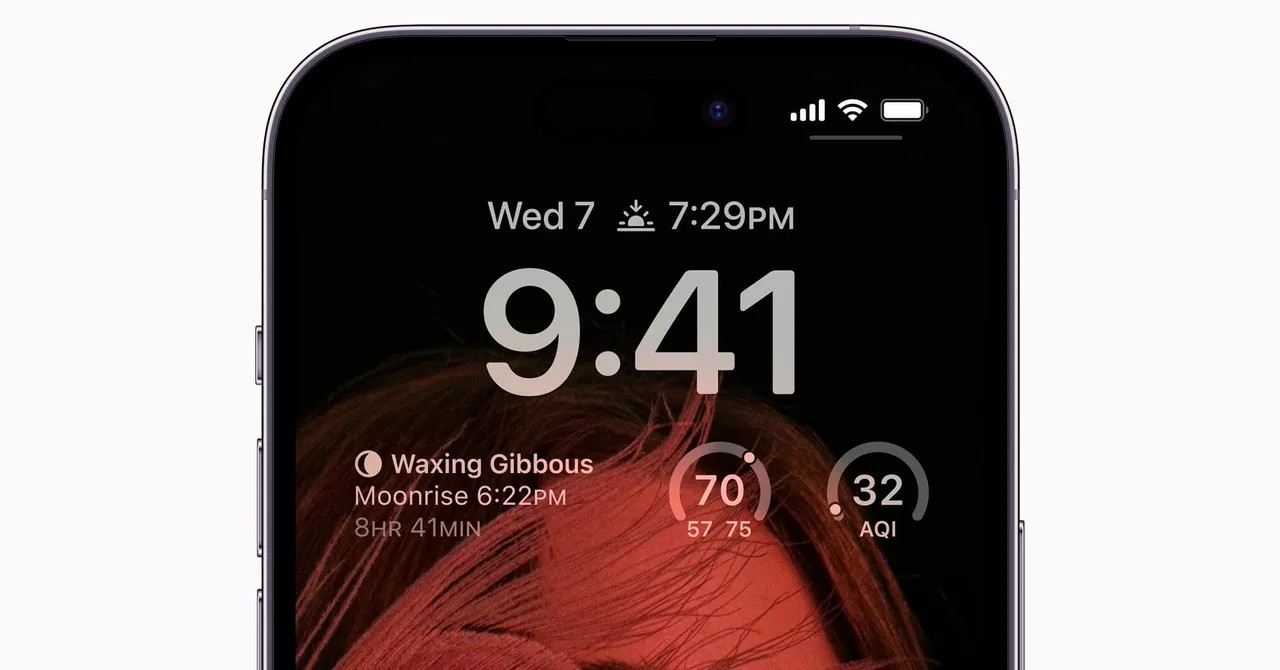
Make your phone talk without waking up. The Always-On Display isn’t just for looking cool with dynamic clocks. It’s a gatekeeper. Let it do the heavy lifting so your thumb stays in your pocket. You glance. You get the info. You move on. No unlocking. No rabbit holes.
Pixels and the Google Play
Most Android phones have this. Google Pixel does it best, honestly.
Go to Settings. Then Display and touch. Find Always-on display. Turn it on. Simple enough? Yeah.
But here’s where you need to pay attention. That toggle isn’t enough. You have to decide what survives the filter.
Back in Display and touch, tap Lock screen. Look for Notifications on lock screen. This is the dial for your digital chaos. You can let them flood the screen in full color or keep them as shy snippets.
Sensitive info? Hide it. Your text from your spouse at 2 AM? Maybe not everyone in the elevator needs to see it. With Always-on on, your phone is broadcasting to anyone standing within arm’s reach. Cringeworthy.
Want shortcuts? Widgets on lock screen is your friend. Add a camera icon. Weather stats. Swipe and go. No unlocking required. You skip the app launcher. You bypass the temptation to check Instagram for three minutes.
Samsung’s Clutter
Galaxy users, listen up. Your menus are different, deeper.
Head to Settings, then Lock screen and AOD. First step: flip Always On Display on. Then tap Now bar. It shows sports scores, fitness steps, little life updates. Useful.
Now, notifications. Back out. Go to Notifications > Lock screen.
Turn Show notifications on. But here’s the catch. Pick Cards mode. It gives you the most room, the most detail. Don’t settle for bubbles. You want the full story without the app.
Check the fine print though. If Hide content while locked is off, you’re naked. Everyone sees everything. Flip it on. Or at least decide what’s public.
Widgets work here too. Lock your screen. Hold your finger on a blank space. The phone shifts. Add widgets. Calendar. News headlines. Tap Done. Now your lock screen is a dashboard, not a door.
Apple’s Quiet Game
iPhone users, you’ve been holding out.
Display & Brightness > Always On Display. Turn it on. Easy.
But you have to do one more thing. Toggle Show notifications. Otherwise, it’s just a pretty clock and some icons. Boring.
Manage the noise in the main Notifications section. Three layouts. Pick List. It packs more data onto that screen. More data means less reasons to tap “Hello” and wake the device.
It’s about friction. Unlocking takes friction. Glancing does not.
Build the friction. Let the phone sit there, dim but informative. A billboard you can walk past.
Why keep opening a door to a house that’s always on?